Your report doesn’t stop at telling you what Ena found — the Treatments tab turns those findings into specific things you can act on. This guide walks through the whole flow: finding your recommendations, adding the ones you want to your cart, and checking out. It all happens inside the app, and your card details never touch our servers.
Finding your recommendations
Tap Treatments in the navigation bar. Everything here was chosen for you from your own data.
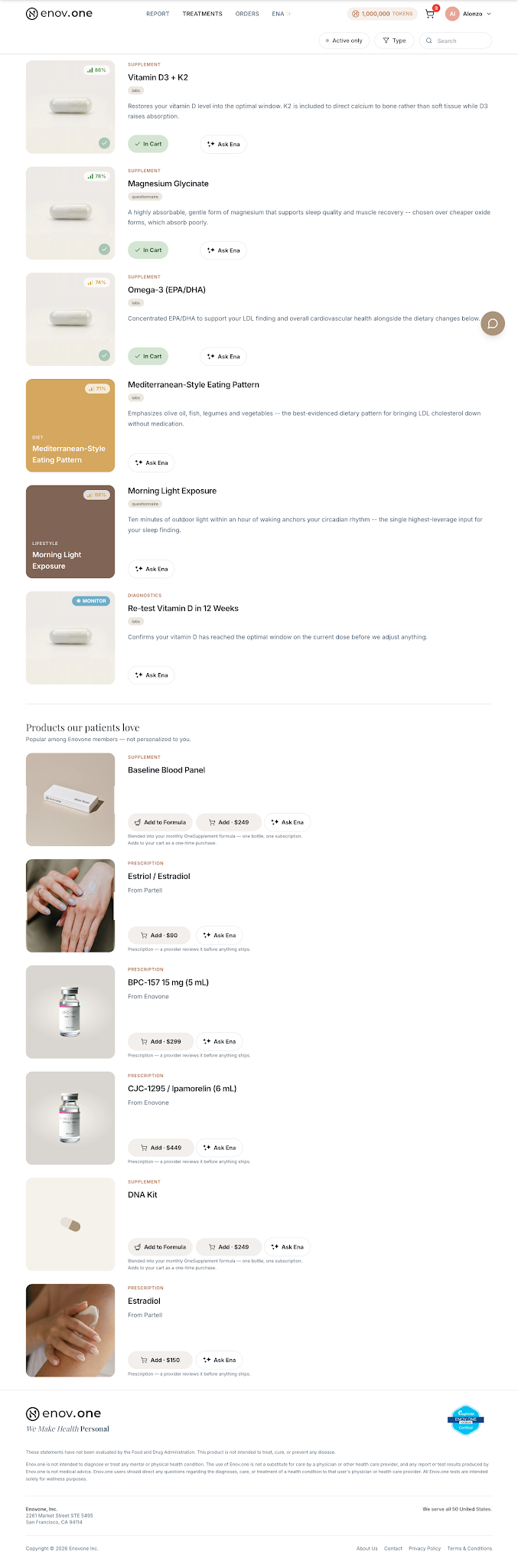
Each card is one recommendation, and it tells you three things at a glance:
- The percentage in the corner is how strong a match it is for you — higher means Ena is more confident it will help.
- The small tag (labs, questionnaire) shows which of your data drove it — so you know why it’s on your list.
- The description explains in plain language what it does and why it was chosen for you specifically.
Not everything here is something to buy — and that’s deliberate. Diet and lifestyle recommendations are habits, not products, and monitoring recommendations are follow-up tests, so those cards have no add button. If you’re unsure about any recommendation, tap Ask Ena right on its card and ask “why this one for me?” — she’ll explain it against your own results.
Below your personalized list you’ll also see Products our patients love — popular items among Enovone members. Those are not personalized to you, and the app says so right on them.
Adding to your cart
Supplement cards give you two ways to buy, side by side:
- Add · $… adds it to your cart as a one-time purchase at the price shown.
- Add to Formula blends it into your monthly OneSupplement formula instead — one bottle, one subscription, rather than a shelf of separate jars.
How to do it
- Find the recommendation you want and tap Add · $….
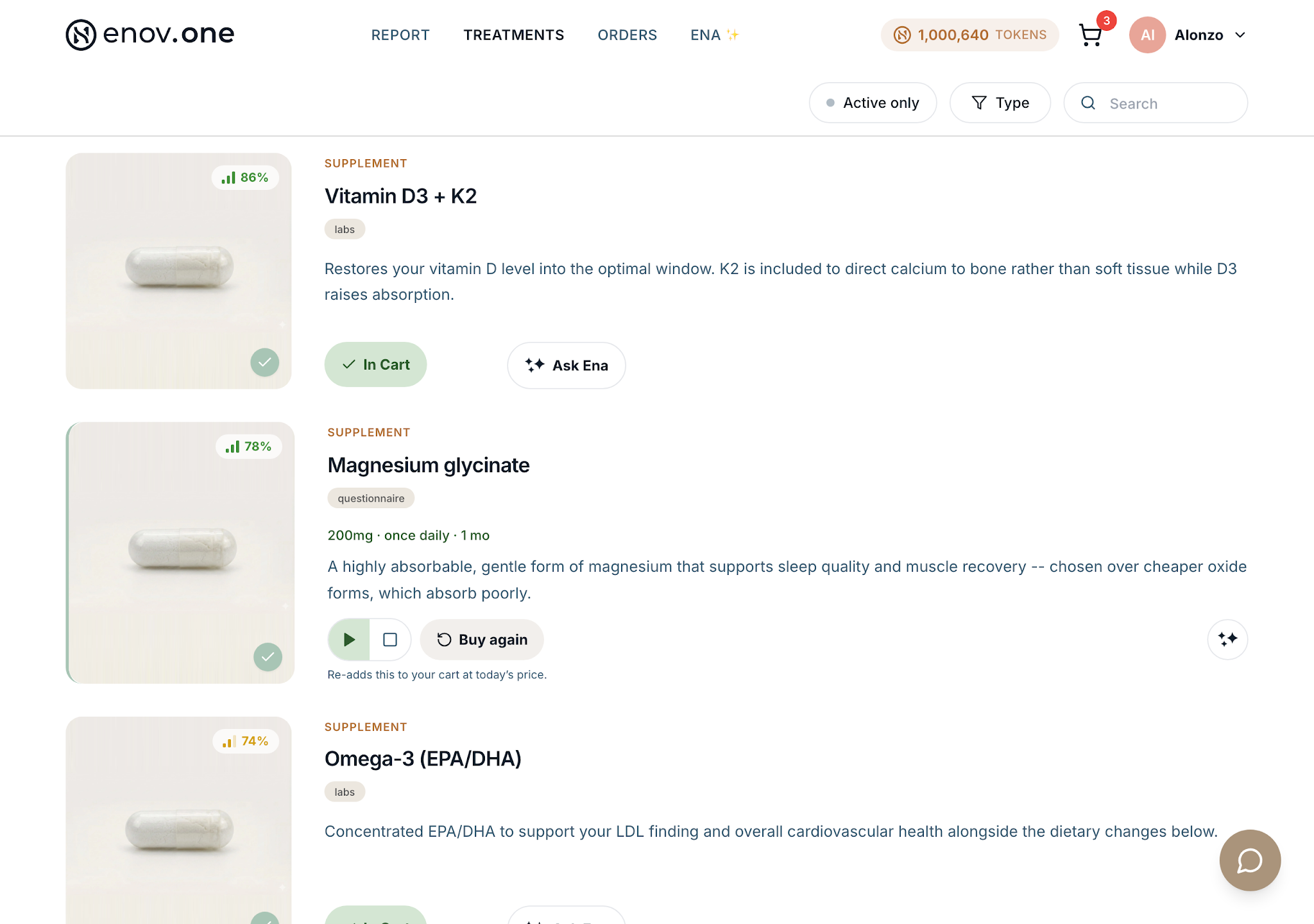
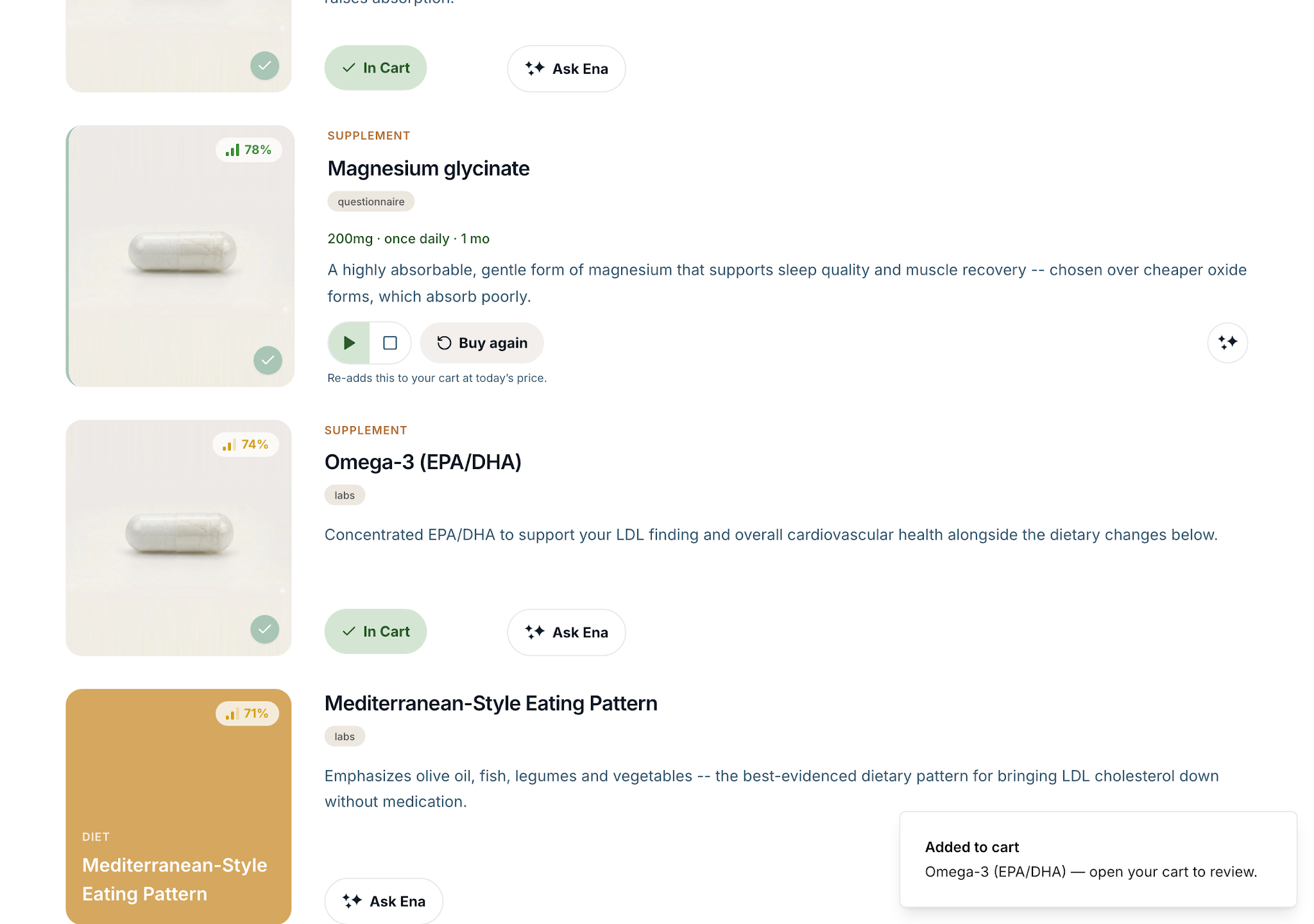
- Watch it confirm — three things happen at once: the button flips to a green In Cart, an “Added to cart” note appears in the corner of the screen, and the number on the cart icon (top right) goes up by one.
- Keep browsing and add as many as you like — nothing is charged until checkout.
Two states you might also see on a card: Buy again means you’ve ordered this before — tapping it re-adds it to your cart at today’s price. And prescription items are a little different: you can add them, but a provider reviews the order before anything ships — the card says so underneath.
Reviewing your cart
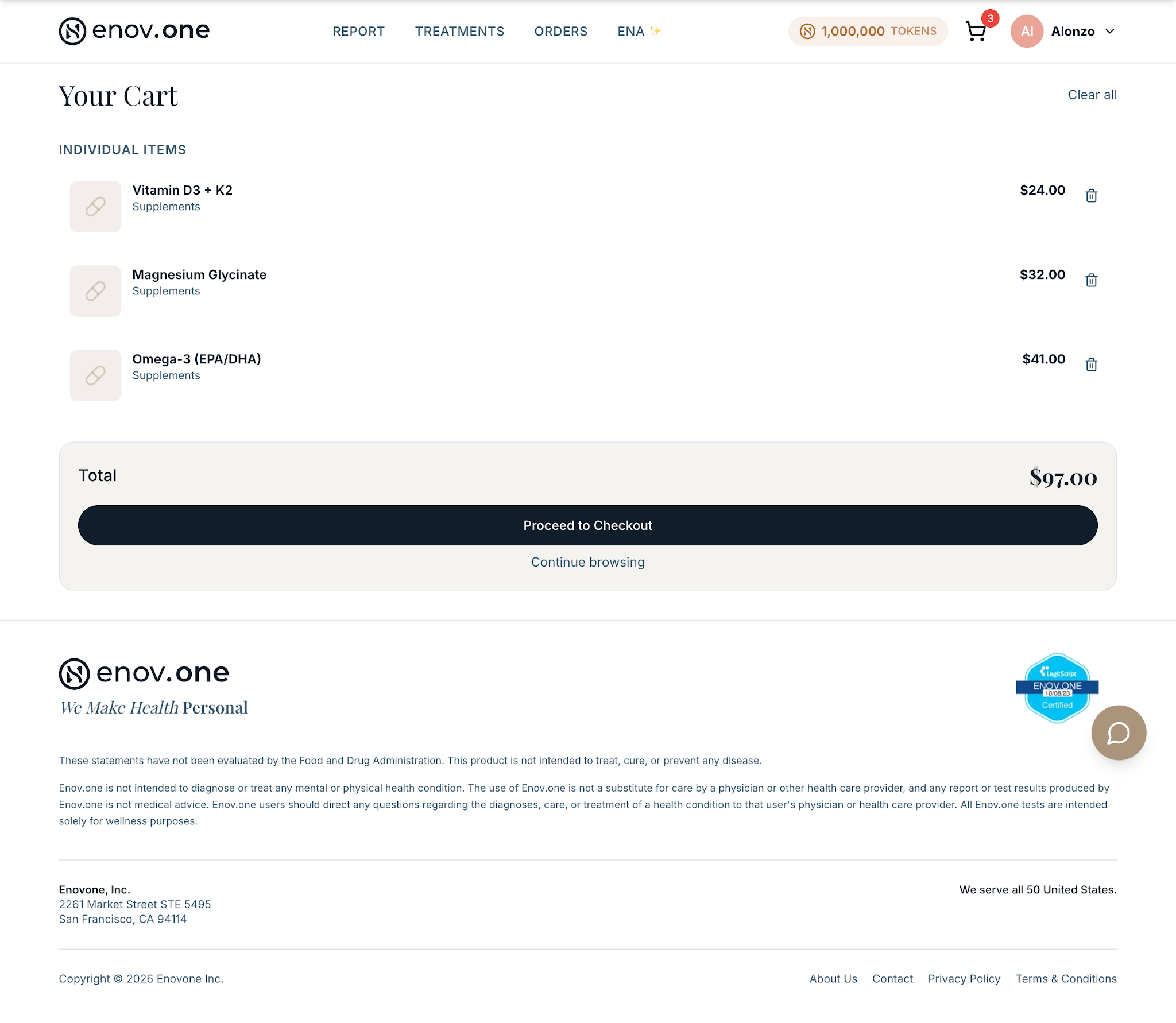
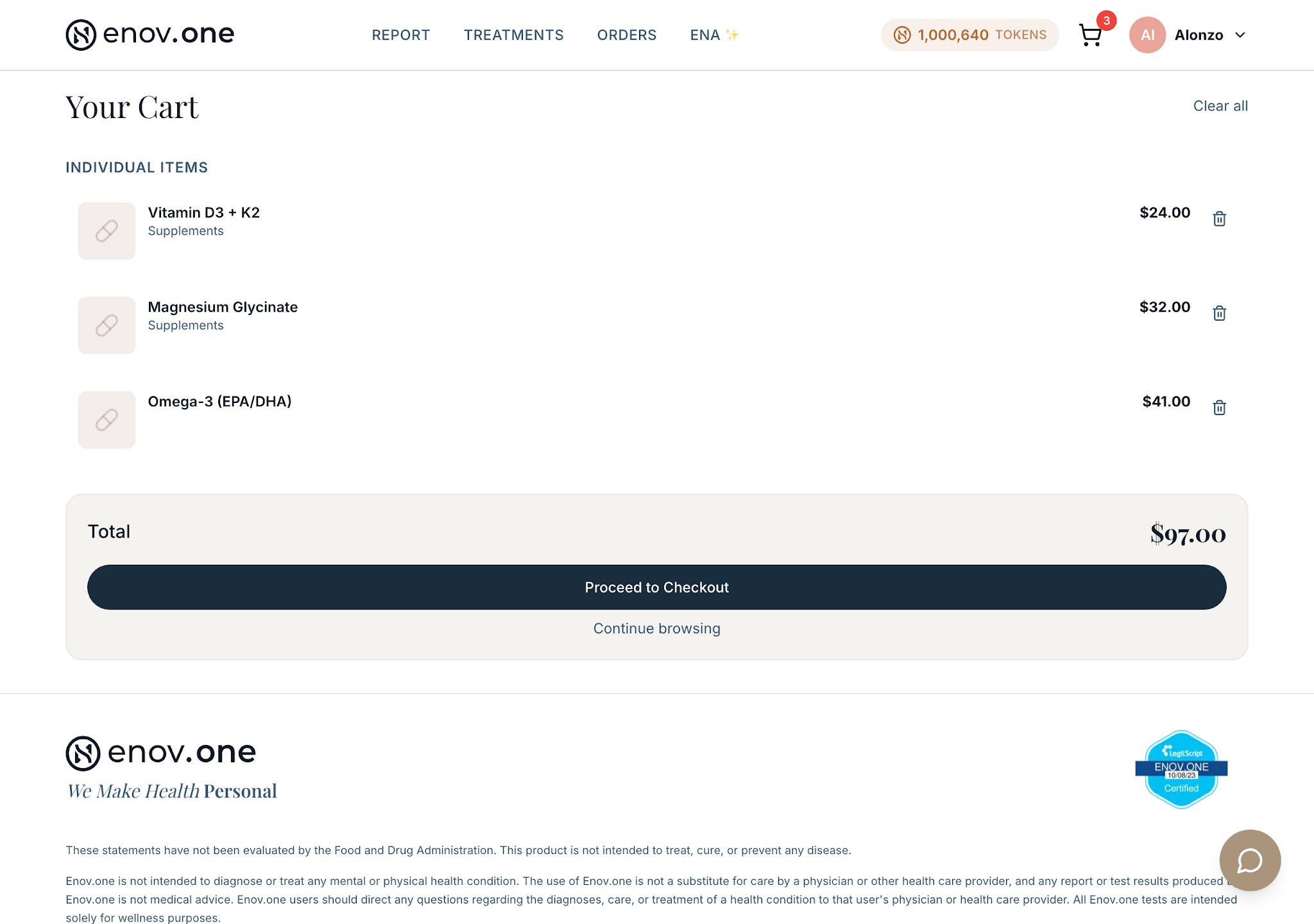
Tap the cart icon in the top-right corner — the small number on it is how many items are waiting. This is your chance to look everything over before paying:
- Each item is listed with its price.
- Changed your mind about one? Tap the trash icon next to it to remove just that item — or Clear all (top right) to start over.
- The Total is at the bottom. Want to add more first? Continue browsing takes you back to Treatments — your cart keeps everything while you look around.
- Happy with it? Tap Proceed to Checkout.
Checking out
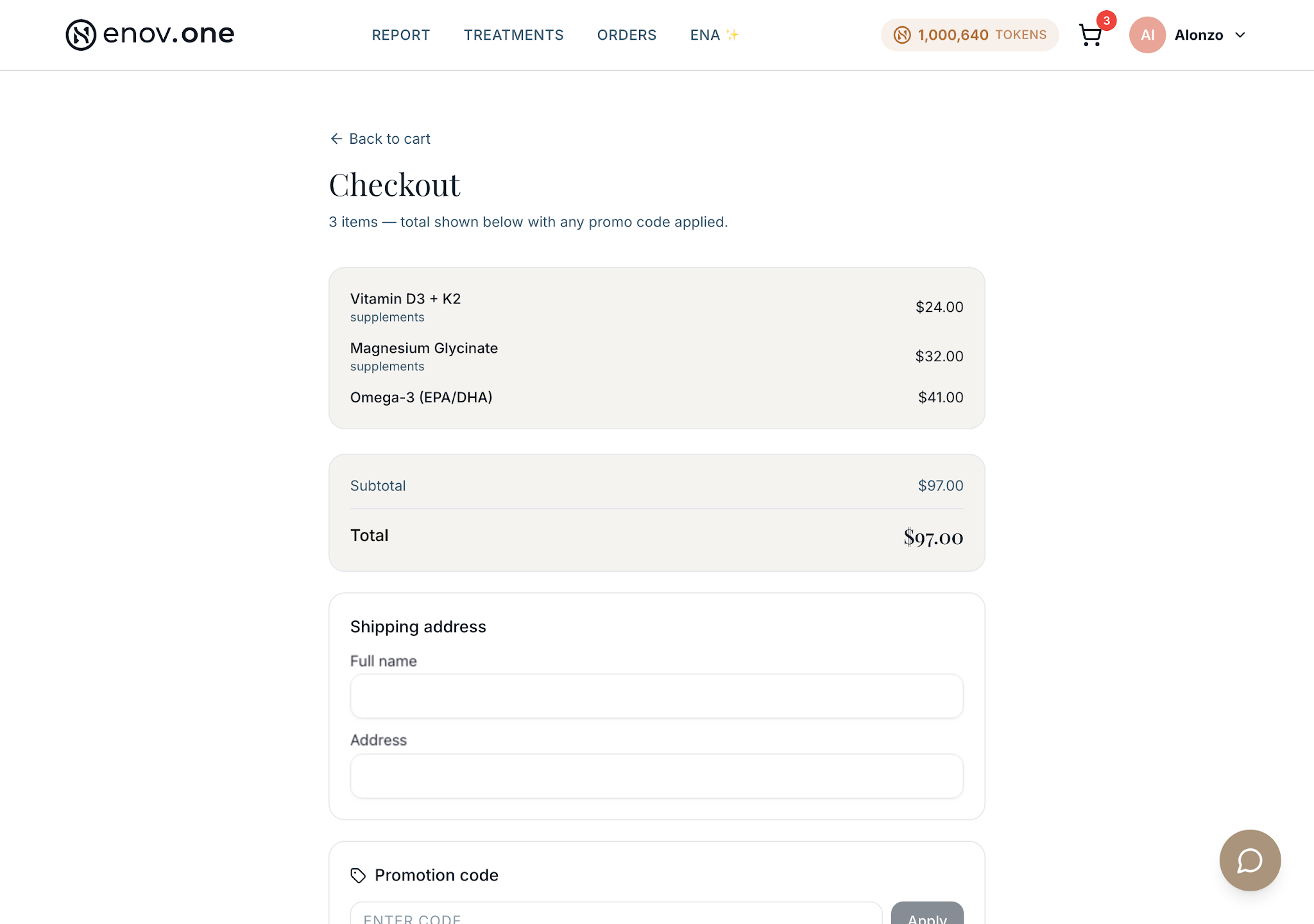
Checkout is one page, top to bottom — and nothing is charged until the very last button.
- Check your order summary. The same items and total from your cart, one more time. (Spot something wrong? Back to cart at the top takes you back without losing anything.)
- Fill in your shipping address — name, address, city, state, ZIP.
- Have a promotion code? Enter it and tap Apply — the total updates right away.
- Choose how to pay. Card or bank — you may see a small credit back for paying by bank. Payment is powered by Stripe; we never see or store your card details.
- Tap Pay. The button shows the exact amount, so there are no surprises.
That’s it
Your supplements are on their way, and your recommendations stay right where they were — so you can come back to add something later, re-order with Buy again, or ask Ena to walk you through any of it. Ten seconds in the chat , “what should I start with?”, is a perfectly good way to decide what goes in the cart first.