Most people already have something useful sitting in an email or a drawer — a blood panel from a checkup, a 23andMe kit from years ago, a sleep trend on their watch. Uploading any of it moves Ena from general to specific. You don’t need a full workup, and you don’t need anything recent to start.
What files actually work
- Labs, and photos of labs: PDF, Word (.doc and .docx), Excel (.xlsx and older .xls), CSV, plain text, and photos — PNG, JPG/JPEG, WebP and HEIC/HEIF (the standard iPhone photo format).
- DNA raw data: exports from 23andMe, AncestryDNA, MyHeritage / FamilyTreeDNA, Illumina GSA and SelfDecode; clinical .vcf and .vcf.gz files; and a .zip containing any of those (no need to unzip first).
- Not supported: raw sequencing files (FASTQ, BAM). If that’s what you have, contact support rather than uploading it. Excel binary workbooks (.xlsb) aren’t supported either — save the file as a normal .xlsx first.
What works best
- The original PDF from the lab beats a photo every time. Quest, LabCorp and most portals let you download the report — use that file if you can.
- If a photo is all you have, that’s fine: lay the page flat, get good light, capture the whole page including the reference-range column, and take one photo per page.
- For DNA, upload the raw data file (usually a .txt or .zip) — not the pretty PDF report 23andMe or Ancestry shows you on screen. The raw file is the one with your actual genetic markers in it.
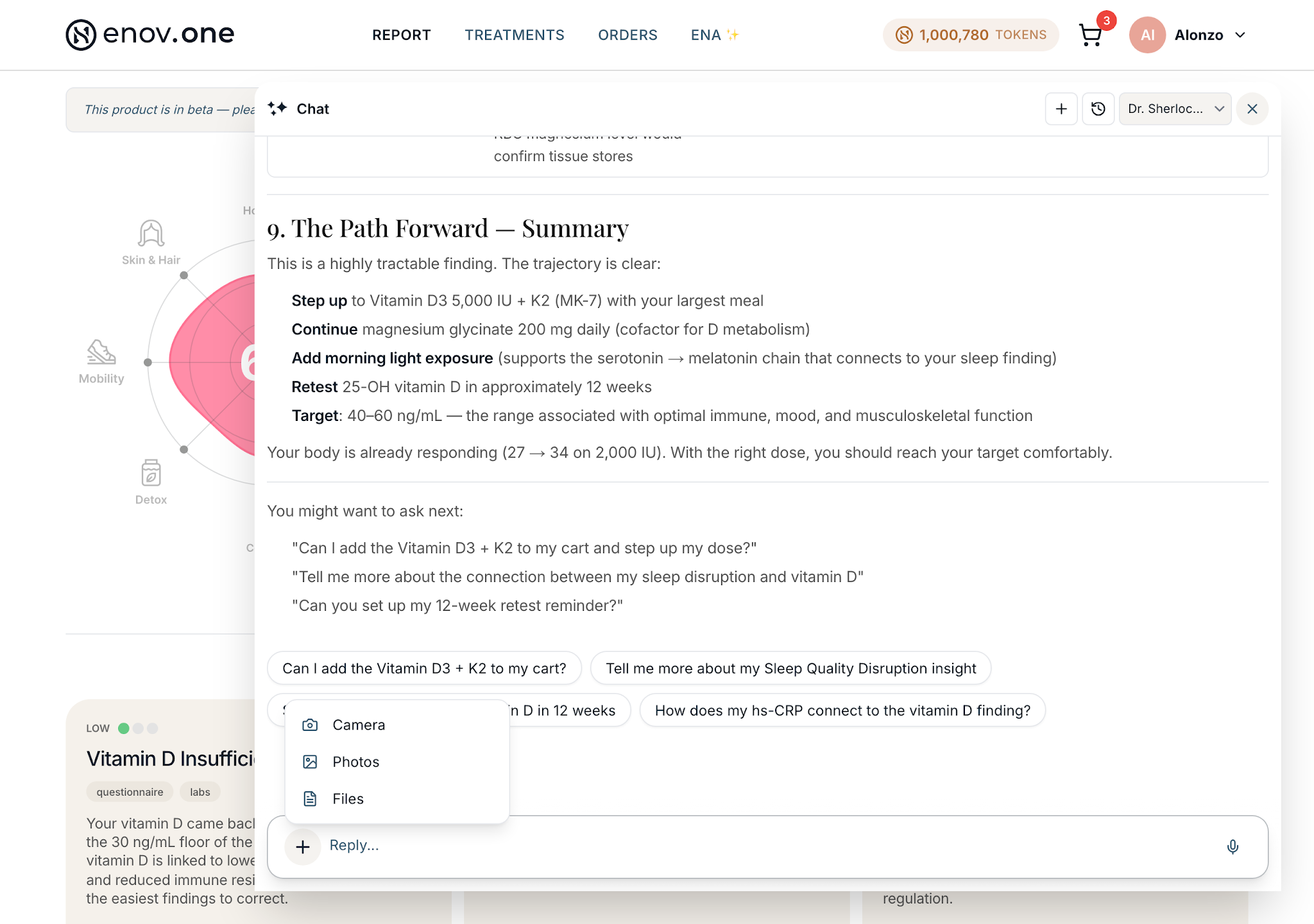
How to upload — three options
- From the chat (fastest): tap the + to the left of the message box and pick your files — on a phone your camera, photo library and files all come up; on a computer it opens your file browser. You can select several lab files at once.
- From Home: scroll to “Your data — everything Ena reads from” and tap “Upload your first lab” on the Labs tile, or “Upload existing” on the DNA tile.
- From My Files: tap your avatar (top right) → “My Files” — the full picture, with sections for Labs, DNA, Downloads and Full Analysis. Upload here, or delete anything you’d rather we didn’t keep.
Wearables. Tap your initial in the top-right corner → Settings → Wearables, then use “Import from an app”. Upload the file your wearable app exports (.zip, .csv or .xml, up to 100 MB) from Apple Health, Oura, Whoop, Zepp / Amazfit, RingConn, Dexcom, Garmin Connect or Fitbit (Google Takeout). The screen shows the steps for each app. Some apps, like Oura and Garmin, email you the export, so it can take a while to arrive. Once it’s uploaded, your history is added and you can ask Ena about it.
For any other device, open its app, go to the trend you care about (sleep, HRV, resting heart rate), take a screenshot, and upload it the same way you’d upload a lab photo. Then tell Ena what she’s looking at — “this is my last 30 days of sleep” — and ask your question.
Good to know: you don’t have to sit and wait. Uploads keep working in the background — a small chip follows you around the app showing progress (“3 of 8 labs uploaded”) — and you can carry on chatting or come back later.