Your account is your own private space. Everything you add to it is used for one thing: making Ena’s answers about you. You can start for free, and you don’t need a credit card to create an account.
Creating your account
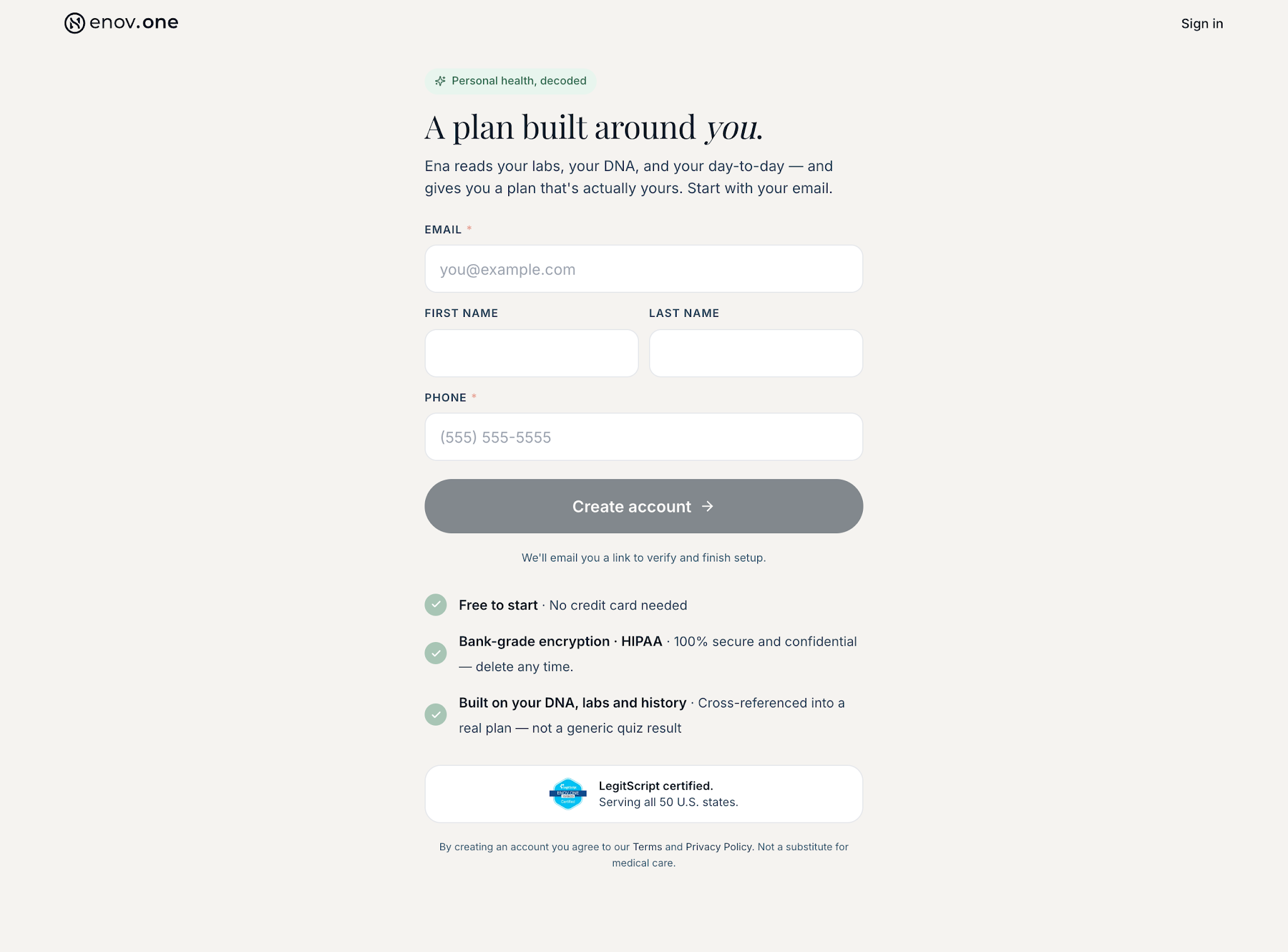
- On your phone or computer, go to live.enov.one. You’ll land right on the sign-up form. Enter your details
- Tap “Create account.” (The button stays grey until your details are filled in.) You’ll see: “We’ll email you a link to verify and finish setup.”
- Open that email on the same device if you can, and tap the link — it drops you straight into setup, already signed in.
- The first time you’re in, you’ll be asked to accept the Patient Disclaimer. Tap “I Agree.”
Signing in later
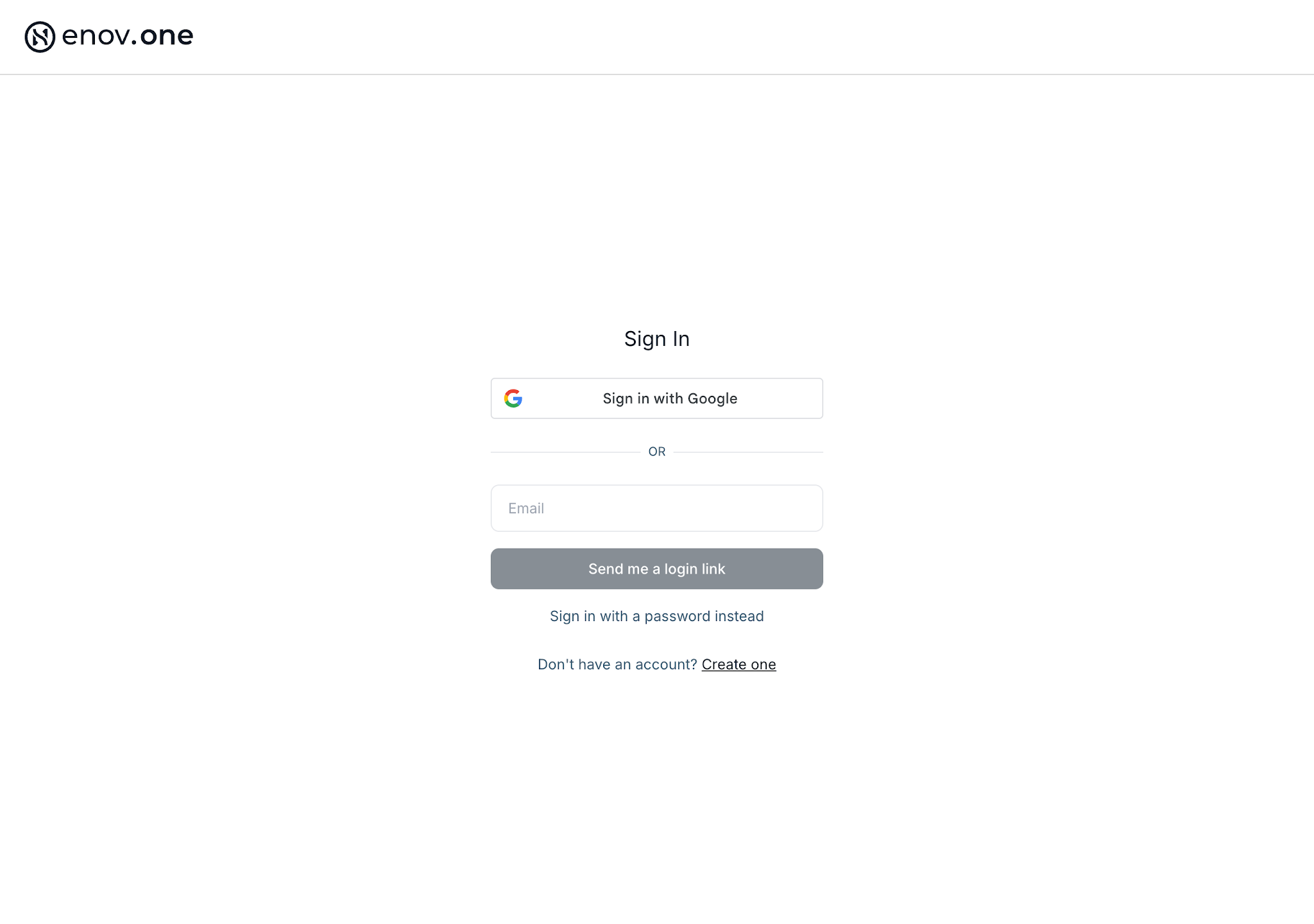
- Go to live.enov.one and tap Sign in, or go straight to the Sign In page.
- Enter your email, then choose either:
- “Send me a login link” — we email you a one-tap link, with no password to remember. (Easiest on a phone.)
- “Sign in with a password instead” — this reveals a password box; enter it and sign in.
Two things worth knowing about the login link: it works for 60 minutes and once only, and it signs you in on whichever device you open it on — so if you asked for it on your computer, open the email on your computer.