Anything you and Ena work out in a conversation can be turned into a clean, properly formatted PDF — with headings, bullets and tables, and diagrams if appropriate. It isn’t limited to your main report: any kind of PDF report Ena can make works the same way. A chat is hard to take with you; a PDF is the thing you actually use — to bring to an appointment, to print, or to share with a spouse, parent or caregiver who helps manage your health. A few examples of what people ask for:
- A doctor-ready summary — “Give me a one-page summary of my key findings I can share with my doctor.” Ten minutes with a physician goes further when you hand them a document based on your actual data.
- A printable supplement plan — timing, doses and what to take with food, on the fridge instead of buried in a chat.
- An explanation you want to keep — “Put your explanation of my thyroid results in a PDF.”
- A before-and-after snapshot — save one before you change a protocol so you can compare later.
How to do it
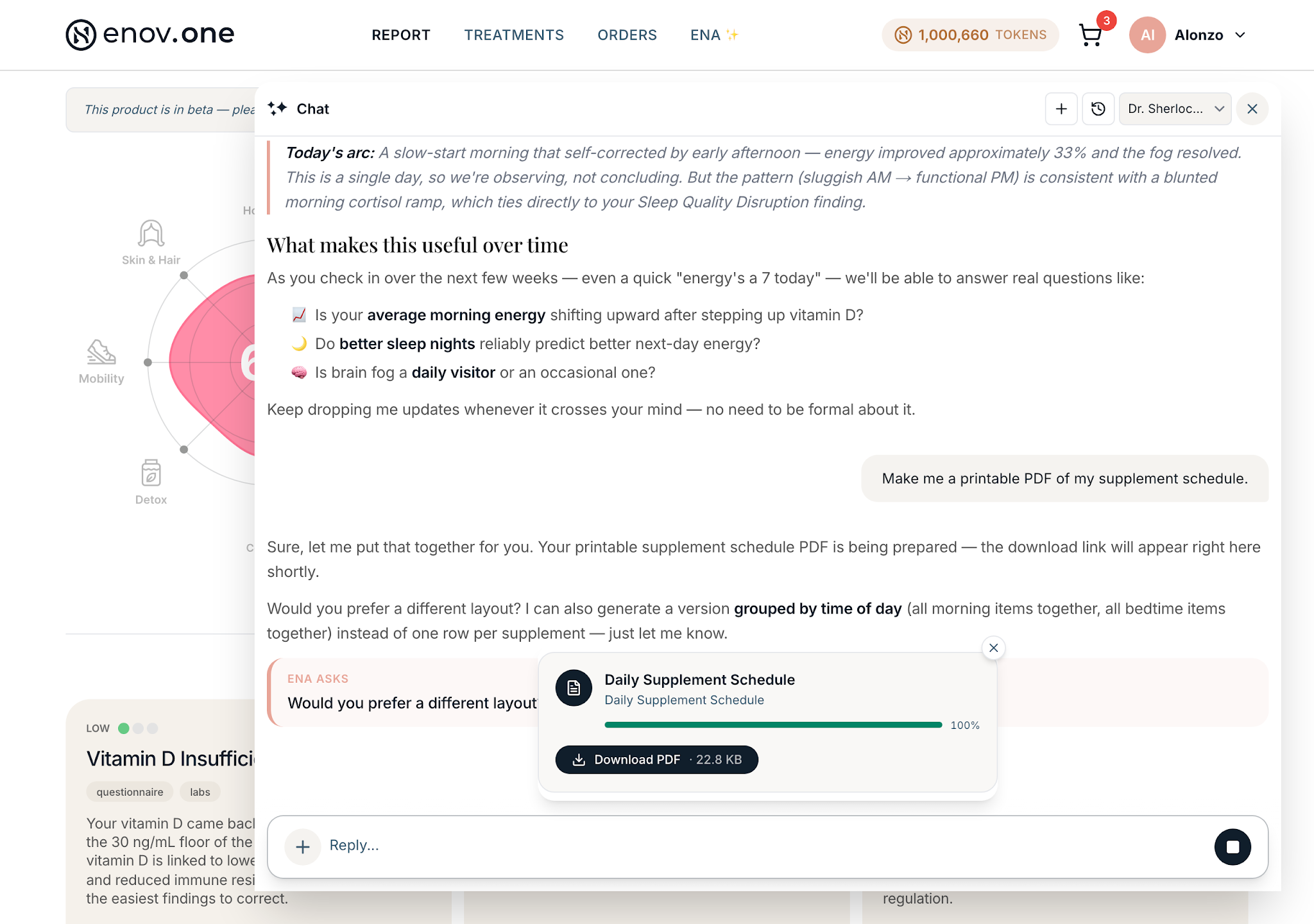
- Open the chat and type your request into the box that says “Ask Ena anything…” — for example, “make me a PDF of my supplement schedule” or “give me a summary of my key findings I can share with my doctor.”
- A card appears in the conversation while she works, showing the document’s name and a progress bar. Just wait a moment.
- When it’s ready, the card shows a “Download PDF” button.
Every PDF is also saved for you, so you never have to scroll back to find one. There are two ways to access them:
- On your Home page, the “Files from Ena” tile lists your most recent documents; tap “All” to see everything.
- Tap your initial/avatar in the top-right corner → “My Files”, then scroll to the Downloads section — they’ll be sorted newest to oldest
Please note that on mobile, tapping a PDF opens it in the browser. To keep it, tap the Share icon and “Save to Files”
A PDF is a snapshot, not a live document. If you’ve since told Ena about a new medication or supplement, just ask her to make a new one — the newest document is the current one. When Ena updates a document, older cards in the chat say “Version 1 · replaced by version 2” and show a “Download latest” button, so you always get the newest. And nothing you download disappears; closing a document in the chat doesn’t delete it, it stays in Downloads.