Once a file finishes processing, every value we pulled out of it is yours to look at — right next to the reference range printed on your own report. Here’s where to find them and what the colors mean.
Where to find them
- From Home: the Labs tile under “Your data” shows how many labs are ready and how many biomarkers we’ve pulled from them, with your most recent files listed underneath.
- From My Files: tap your avatar (top right) → “My Files”. Every file you’ve added is here, newest first, with its status, the date of the draw and how many markers came off it.
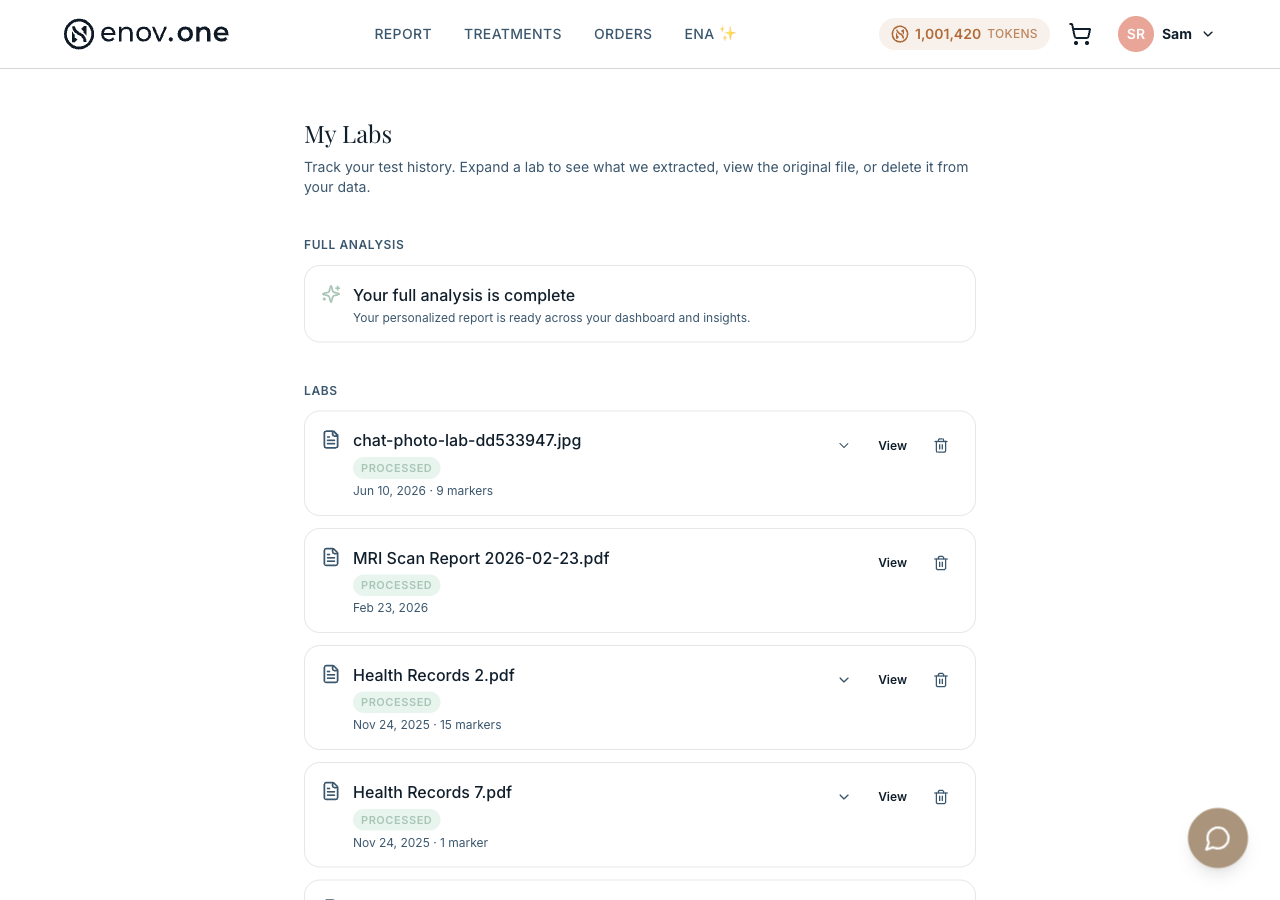
Opening one lab’s results
Tap the ⌄ arrow on a lab to open Extracted biomarkers. For each marker you’ll see:
- The value and its unit — for example hs-CRP 3.2 mg/L.
- Ref: — the reference range printed on that lab report.
- A status chip — IN RANGE in green, or HIGH / LOW in coral when the value sits outside that report’s range. Anything out of range sorts to the top.
Some results show no range and no chip. That’s normal for readings like “Negative” or “Clear” on a urinalysis, and for percentages, where the lab didn’t print a numeric range — it isn’t an error.
Sometimes you’ll see a short note under a result that starts “We’re not marking this result high or low”, followed by the reason — for example, the range on file is in a different unit from your result. That’s deliberate: rather than guess and risk a wrong HIGH or LOW, we tell you why. Tap View to see the range printed on your original report, or ask Ena about it.
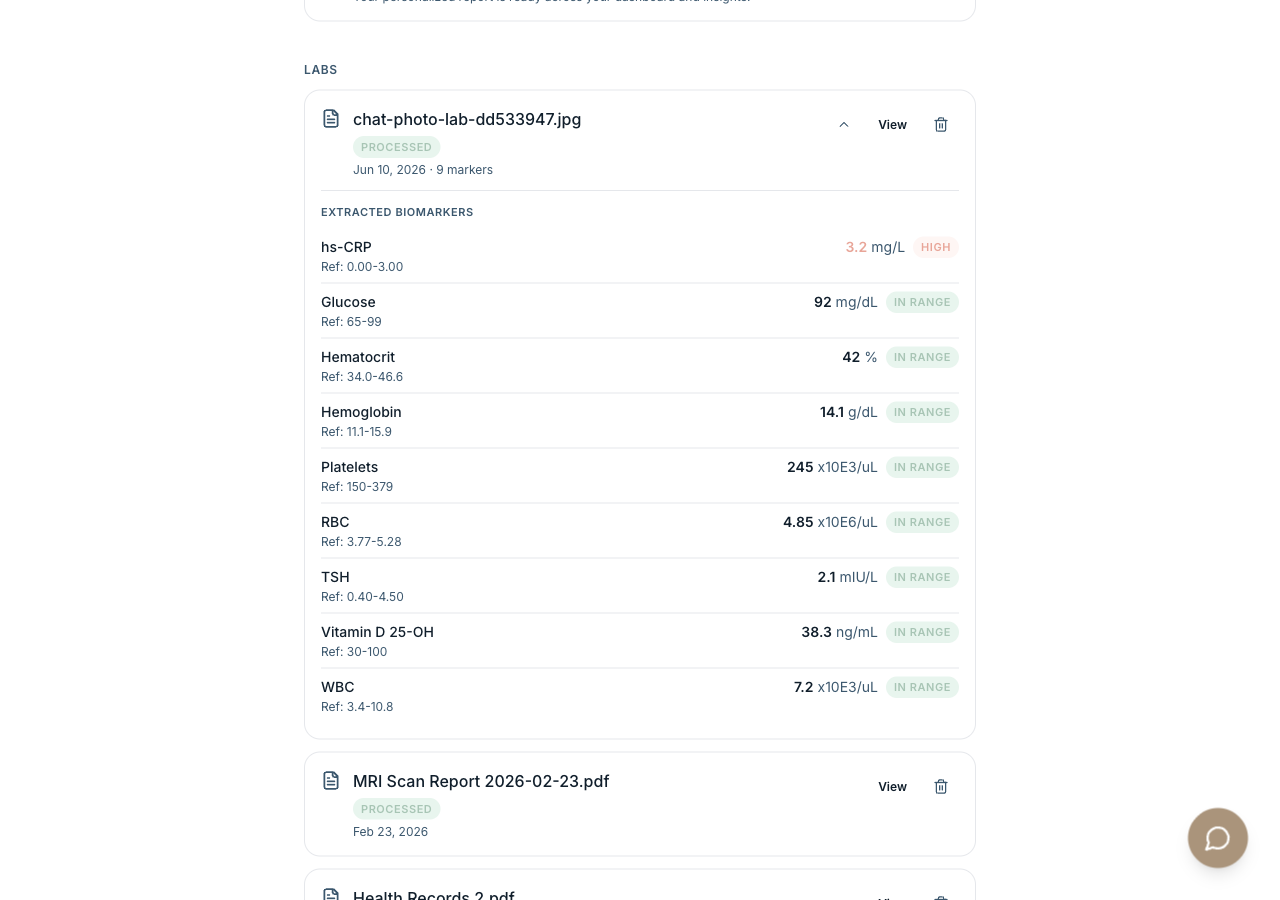
Checking against the original report
Tap View on any lab to open the file exactly as you uploaded it — the PDF or the photo. That’s the quickest way to sanity-check a number, especially results read from a photo. The bin icon removes a file and its values from your data.
Asking Ena about your results
Open the chat and ask in plain language — Ena reads your actual values:
- “What labs do I already have on file?”
- “How has my TSH changed over time?”
- “What does my hs-CRP of 3.2 mean?”
- “What lab tests should I order next?”
She’ll lay your results out by draw date, mark each one, and point out trends and gaps between draws.
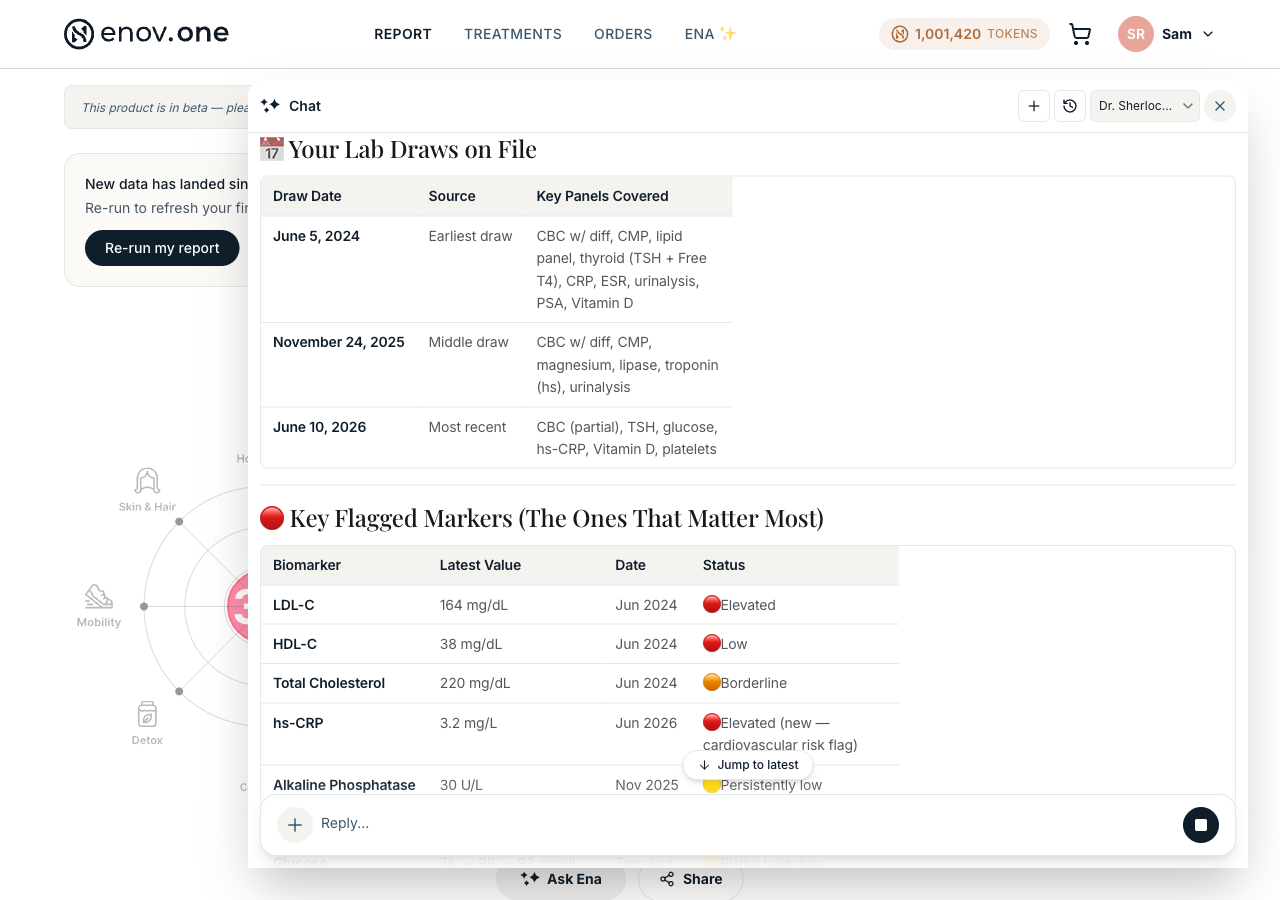
When a value is flagged for a closer look
Sometimes our reader can’t confidently read every number on a report — a blurry photo, a value cut off at the edge of the page, an unusual layout. Rather than guess, we add the value and flag it for a closer look. That’s normal, and it’s how we keep your data trustworthy.
You’ll know a value has been flagged in three places:
- The email or text telling you your labs are in says that a few values were hard to read.
- On My Files, an amber note — “Some values need a closer look” — sits above that file and names the file and the value(s) flagged.
- If you ask Ena about that draw, she’ll point out which values came from a hard-to-read file.
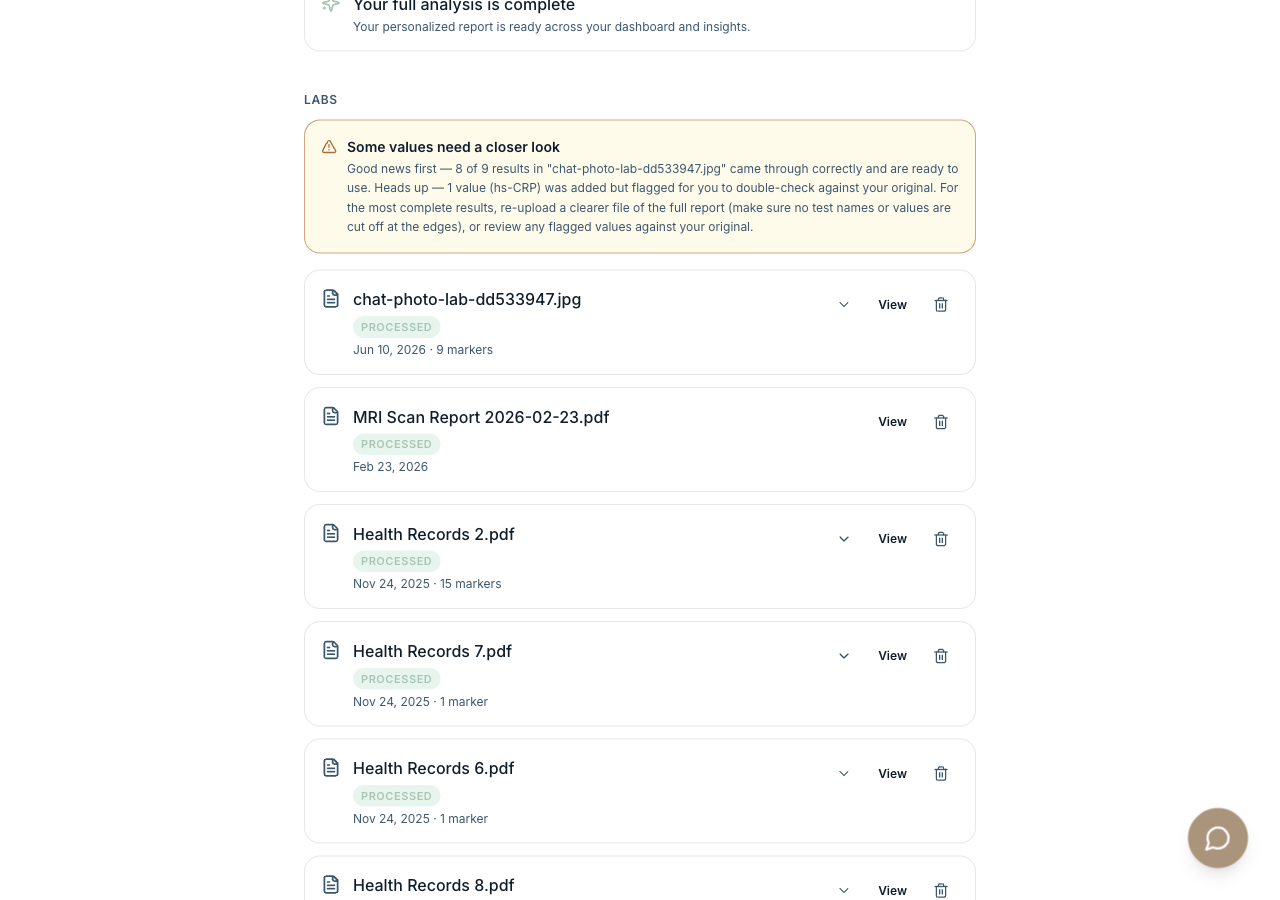
What happens next: this one is yours to check — you have the original report in front of you, so you can settle it in seconds. Open the file, compare the flagged value, and if it matches, carry on as normal. If it doesn’t match, or you can’t tell, tell Ena and our team will step in.
How to check it: it takes a minute.
- Tap View on that file and compare the flagged value against your original.
- If the photo was blurry or cut off, add a clearer photo of the whole page, or the PDF from your lab or patient portal.
- If a value is genuinely wrong, tell Ena in the chat — for example, “my hs-CRP on June 10 says 3.2 but my report says 0.32”. She’ll flag that exact value for the care team, and your original is never quietly changed.
Until you’ve checked a flagged value against your own report, treat it as provisional — and if any result worries you, talk to your clinician.
Good to know: “In range” is based on your lab’s own reference range, not on Enovone’s optimal targets — so the same value can read “in range” at one lab and “high” at another. Ena and your report do the deeper interpretation. And if a file arrives without a date, we’ll ask you to confirm the draw date so the values land in the right place on your timeline.